Export your data from Previsto
Getting started with Clientflow and coming from Previsto? The first step is to pull your existing data out of Previsto so we can move it into Clientflow for you. It's quick and straightforward — you click through two exports directly in Previsto.
The export comes in two parts, meaning two separate files:
- Contacts — all your customer details (name, address, phone, email).
- Service agreements — your recurring agreements with frequencies and prices.
Do them in order. Once both files are downloaded, you send them to us and we handle the rest.
The screenshots below are from the Danish Previsto interface, but the buttons sit in the same place regardless of language.
Part 1: Export your contacts
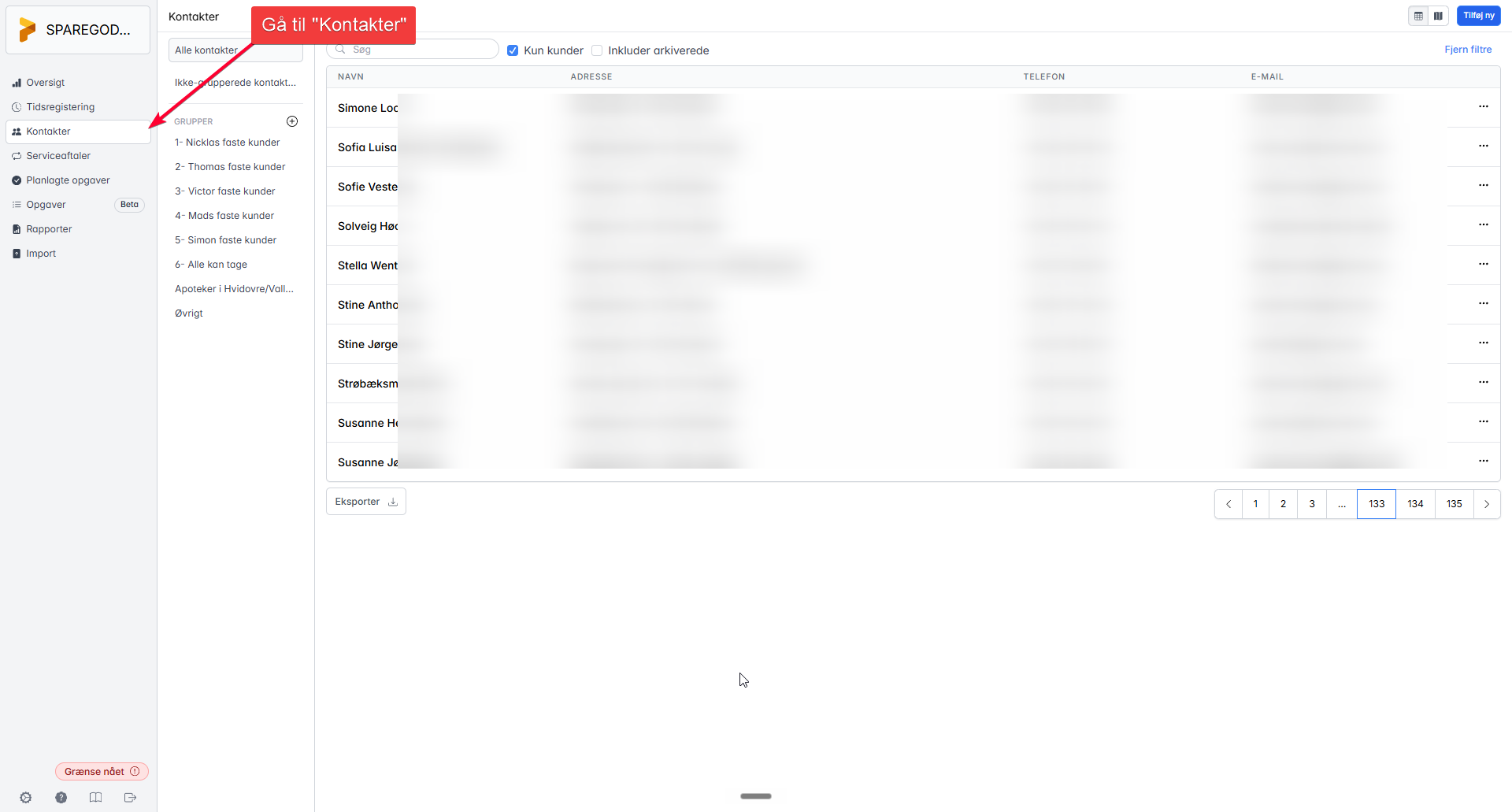
1. Go to "Kontakter" (Contacts)
Click Kontakter (Contacts) in the left-hand menu. Here you see all your contacts — customers, addresses, phone numbers and emails.
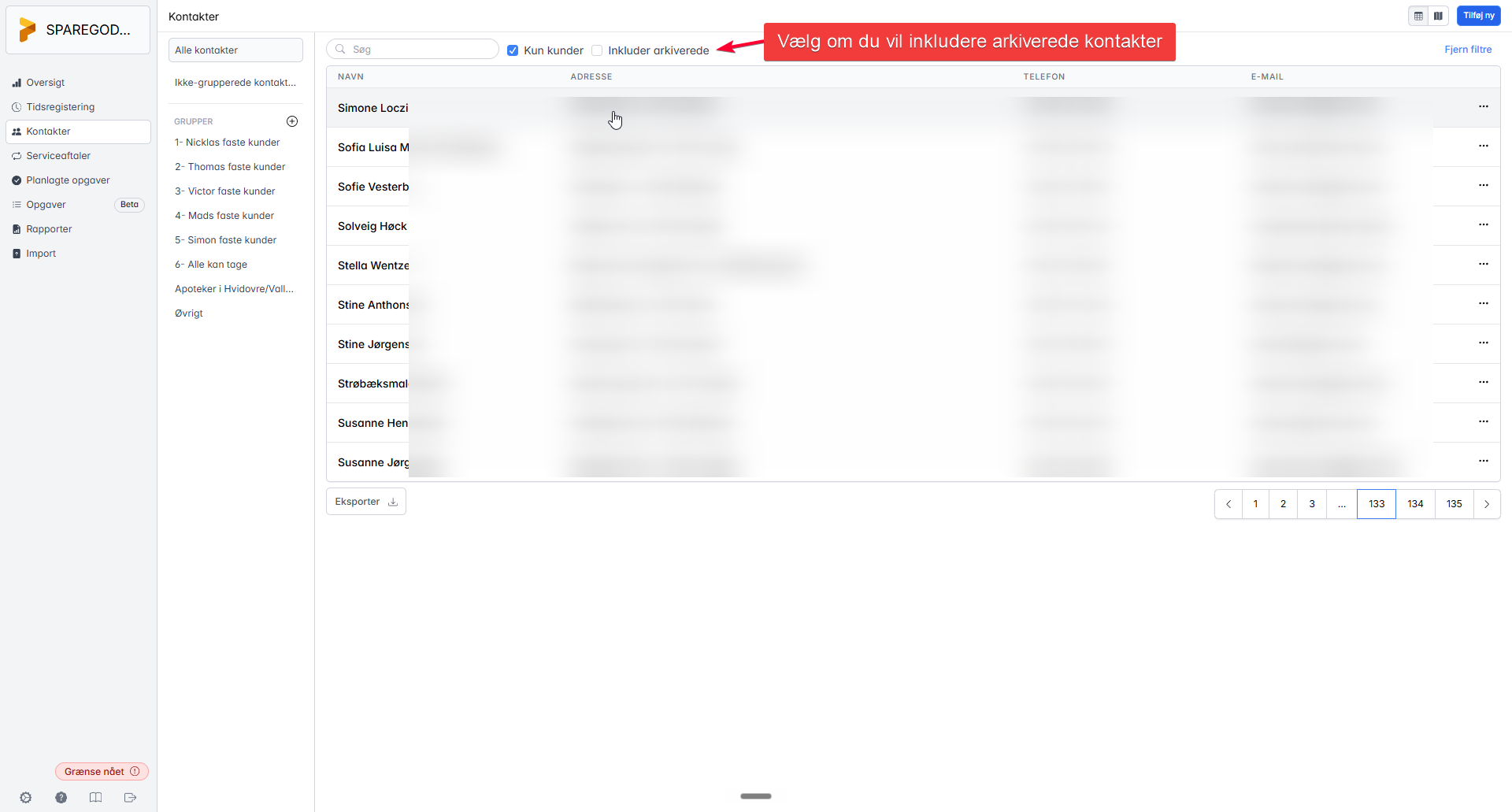
2. Decide whether to include archived
At the top you'll find the "Inkluder arkiverede" (Include archived) checkbox. This controls how much comes along in the export:
- Ticked: archived contacts are included — that is, former customers and contacts you're no longer active with. Choose this if you want to keep your full history in Clientflow.
- Unticked: only active contacts are exported — a cleaner start where only current customers come across.
There's no right or wrong — pick what fits how you want to start in Clientflow. If in doubt, include archived; it's easier to clean up later than to dig out old data again.
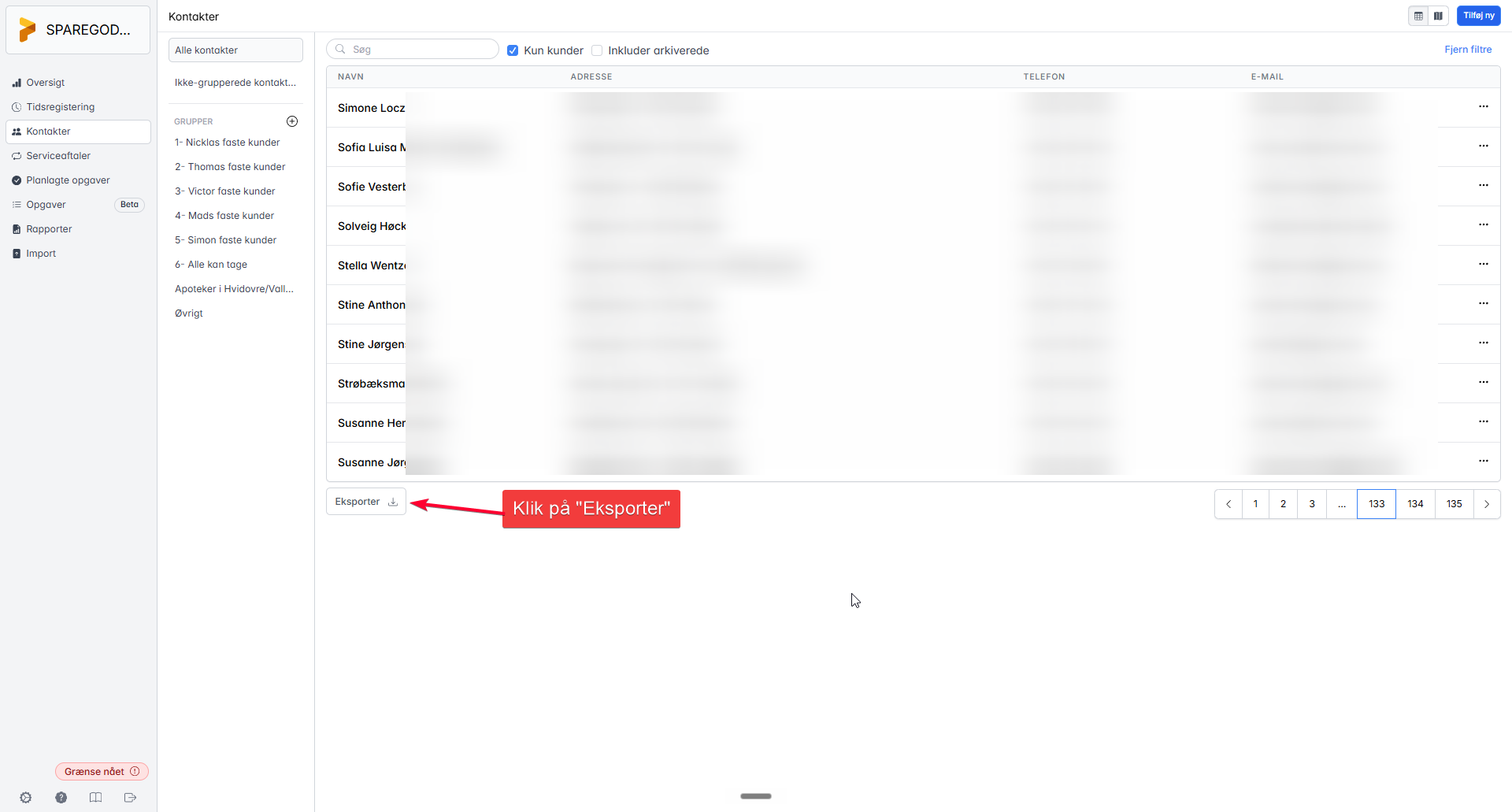
3. Click "Eksporter" (Export)
Click the Eksporter (Export) button at the bottom left. Previsto now generates a file with your contacts and downloads it to your computer.
Save the file somewhere you can find it again — that's the first half done.
Part 2: Export your service agreements
Now we repeat the exercise for your recurring agreements.
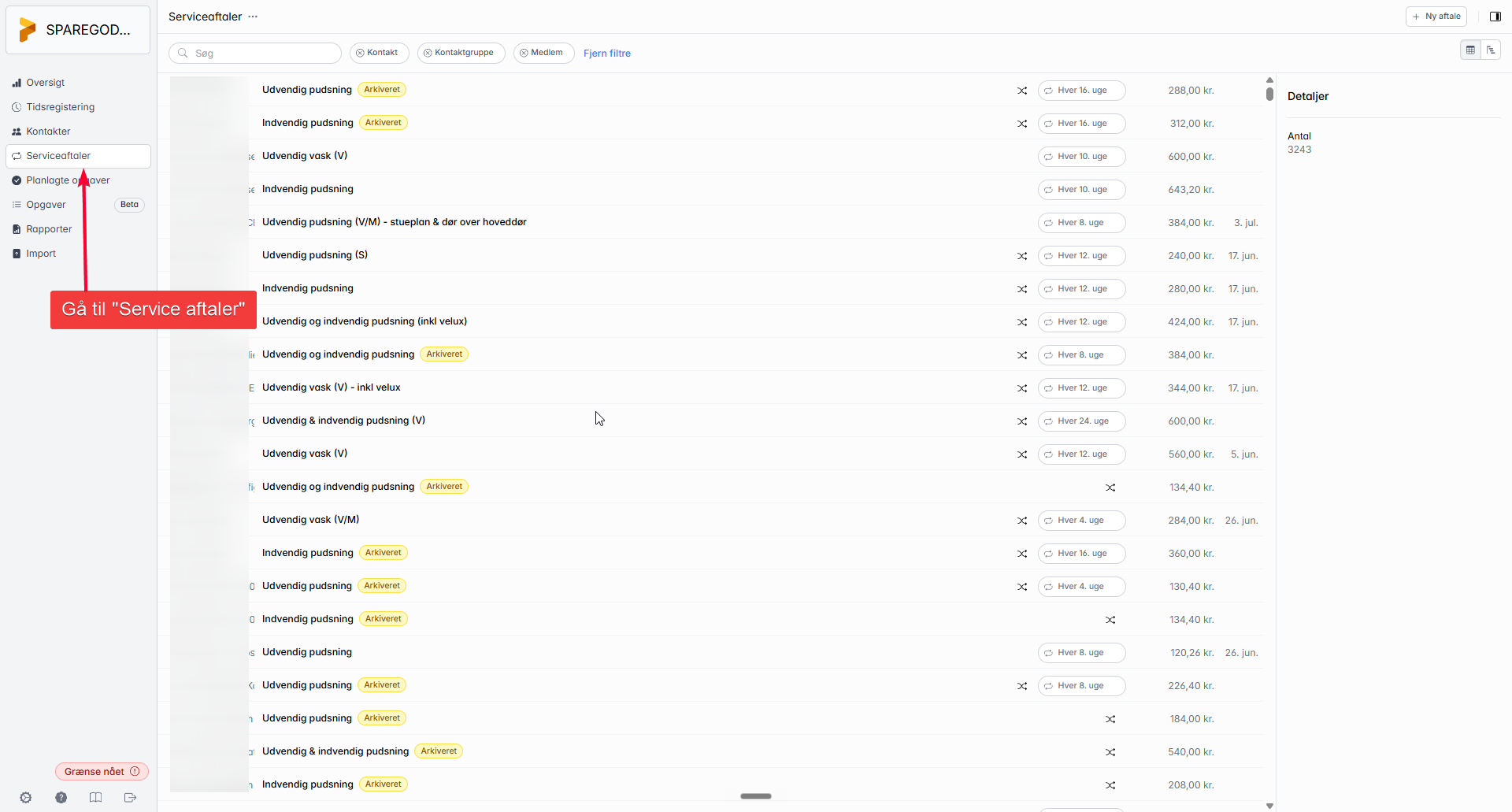
1. Go to "Serviceaftaler" (Service agreements)
Click Serviceaftaler (Service agreements) in the left-hand menu. You'll now see the list of all your agreements with their frequencies (e.g. "Hver 4. uge" — every 4 weeks) and prices.
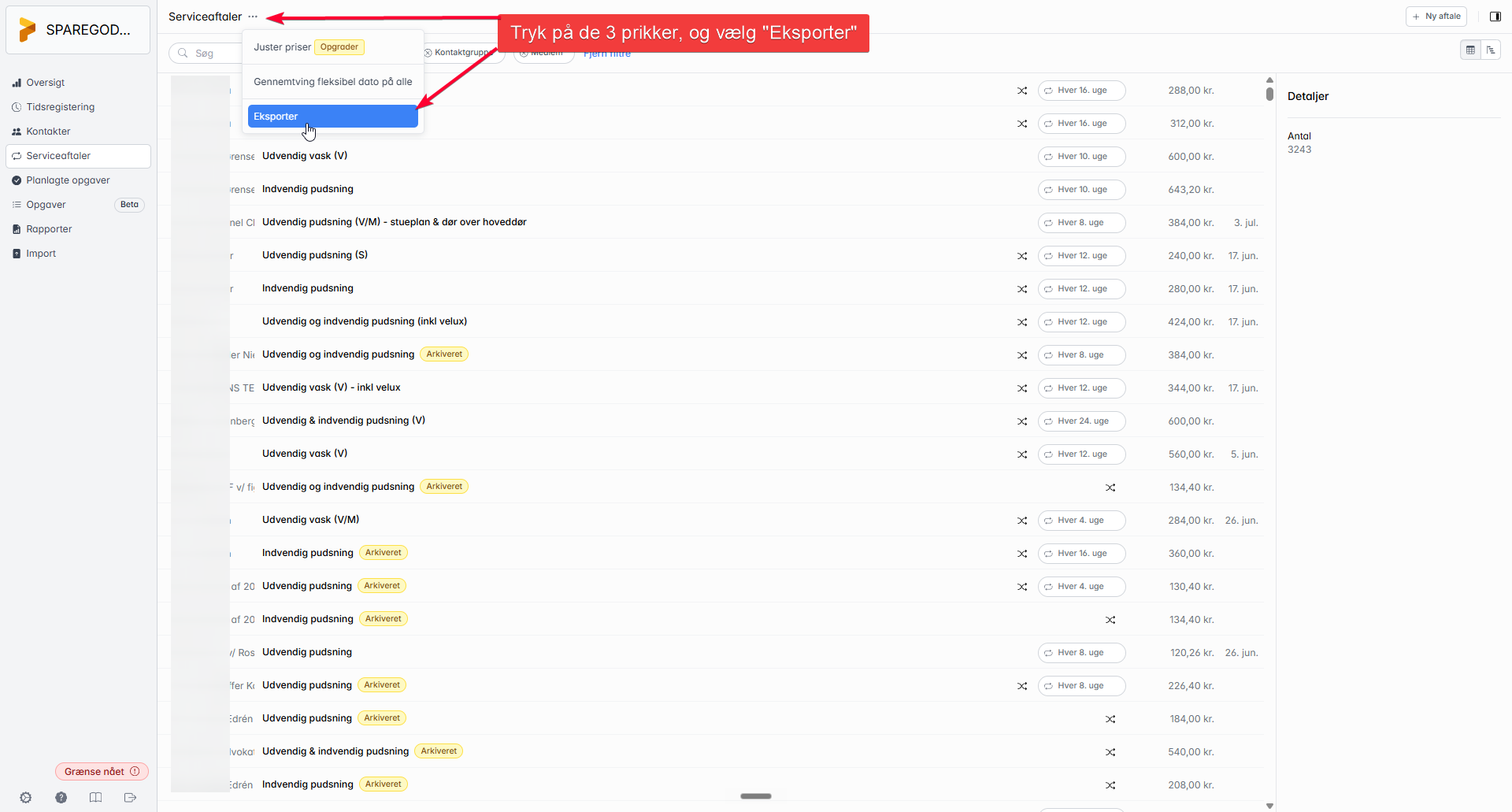
2. Click the three dots and choose "Eksporter" (Export)
Next to the Serviceaftaler heading you'll find the three dots (…). Click them and choose Eksporter (Export) in the menu that unfolds.
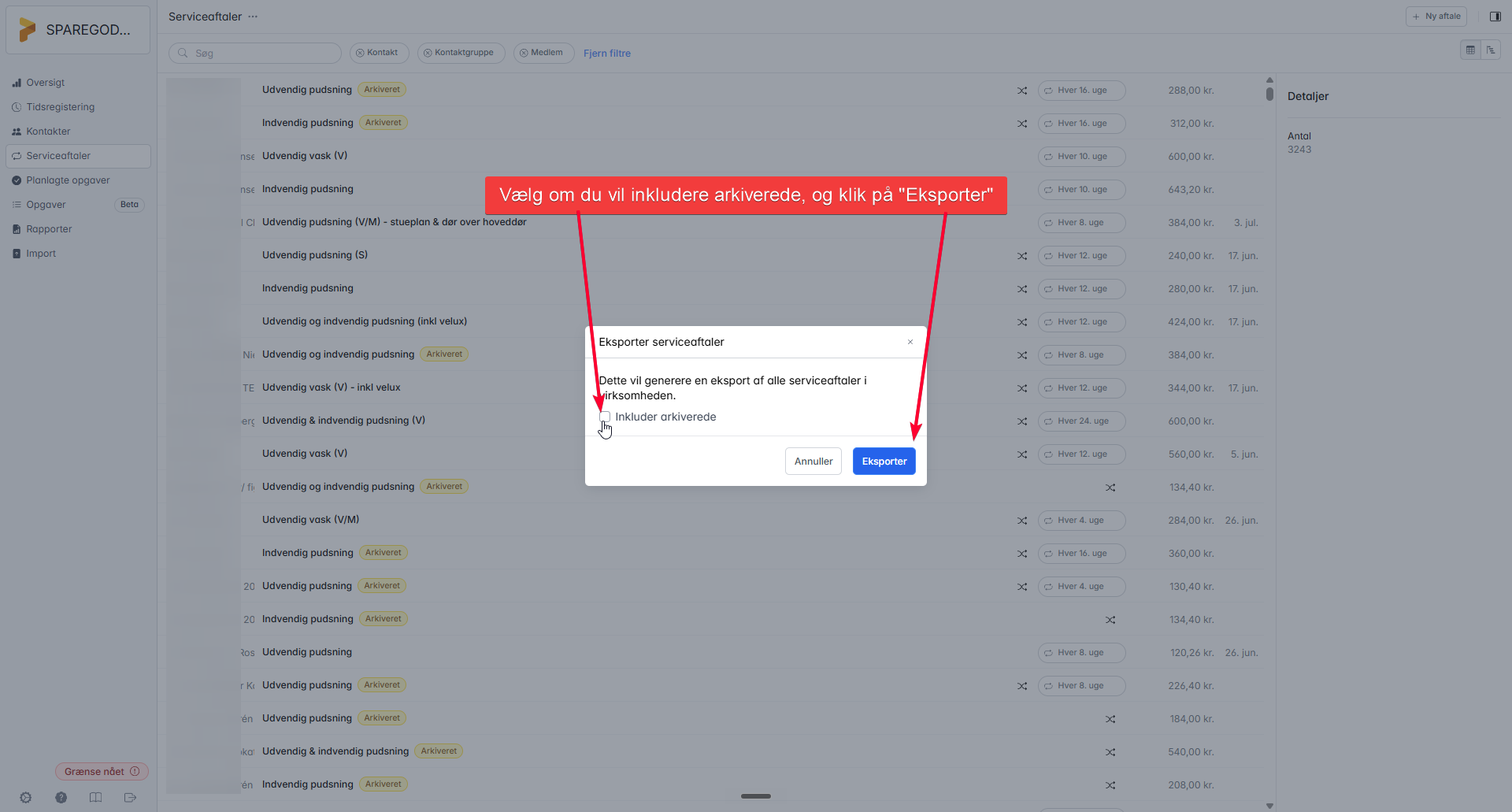
3. Choose archived and click "Eksporter" (Export)
A dialog opens: "Eksporter serviceaftaler" (Export service agreements). It generates an export of all service agreements in the company.
Just like with the contacts, you can tick "Inkluder arkiverede" (Include archived) if you also want finished or archived agreements included. Keep your choice the same as for the contacts so the two files match up.
Finally, click the blue Eksporter (Export) button and the file downloads.
Send the files to us
You now have two files: one with contacts and one with service agreements. The last step is to send them to us:
- Find both export files on your computer (usually in your "Downloads" folder).
- Attach them both to an email to support@clientflow.nu.
- We can also offer an encrypted transfer if you have specific requirements for how your data is stored.
As soon as we have the files, we import your contacts and service agreements into Clientflow — and you're ready to get started.